How to Analyze PGN Files with Chess Analyzer Pro
If you have a PGN file from a chess game you want to analyze, Chess Analyzer Pro handles it start to finish. Here is the exact workflow, from opening the file to reviewing the engine evaluation.
Before You Start
You need two things:
- Chess Analyzer Pro installed. Download it from the releases page for Windows, macOS, or Linux.
- Stockfish. The app doesn't bundle it. Download the binary that matches your operating system and CPU architecture from the Stockfish website.
Once you have both, open Chess Analyzer Pro. Go to Settings → Chess Engine. Browse to your Stockfish executable. Click "Test Engine." If you see a green checkmark, you're ready.
Step 1: Open the Load Dialog
Click the Load Game button in the sidebar. Or press Ctrl+O on your keyboard.
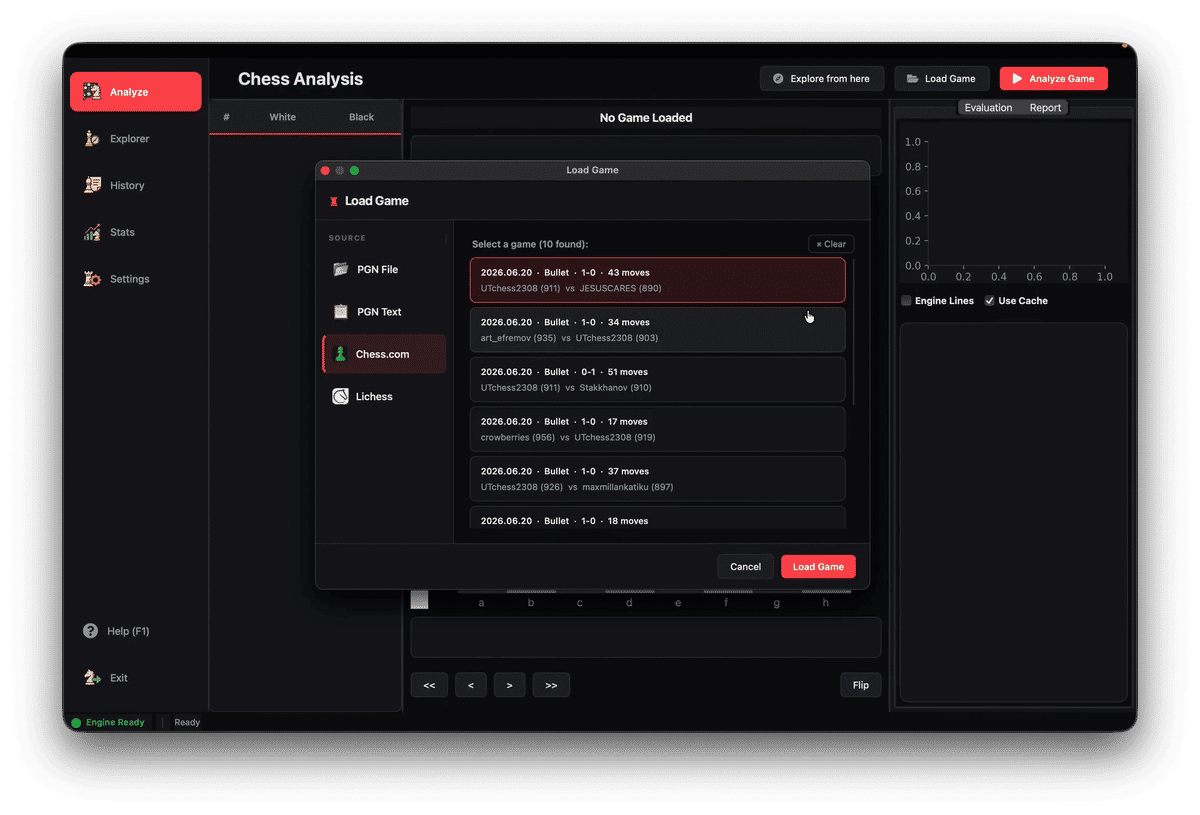
A dialog opens with four tabs across the top: PGN File, PGN Text, Chess.com, and Lichess.
Choose PGN File.
Step 2: Load Your PGN
You have two ways to get your file in:
Drag and drop. Grab a .pgn file from your file manager and drop it anywhere on the dialog. The interface highlights to show it registered the file.
Browse. Click the drop zone area to open a file picker. Navigate to your PGN file and select it.
The dialog parses the file and shows you what it found. If the PGN contains multiple games, they appear as an inline list with metadata: date, result, player names, ratings, time control, and move count.
Double-click the game you want to analyze, or select it and click Load Game.
Step 3: Analyze
Once the game loads, you'll see the analysis view. The board shows the starting position. The move list on the right shows every move in the game.
Click Analyze Game in the left panel.
The status bar at the bottom starts showing an orange spinner. The engine is calculating. Each move gets evaluated one by one. How long this takes depends on your hardware, the depth setting, and the game length. A typical 40-move game at depth 18 takes about 30-60 seconds on a modern laptop.
Step 4: Review the Results
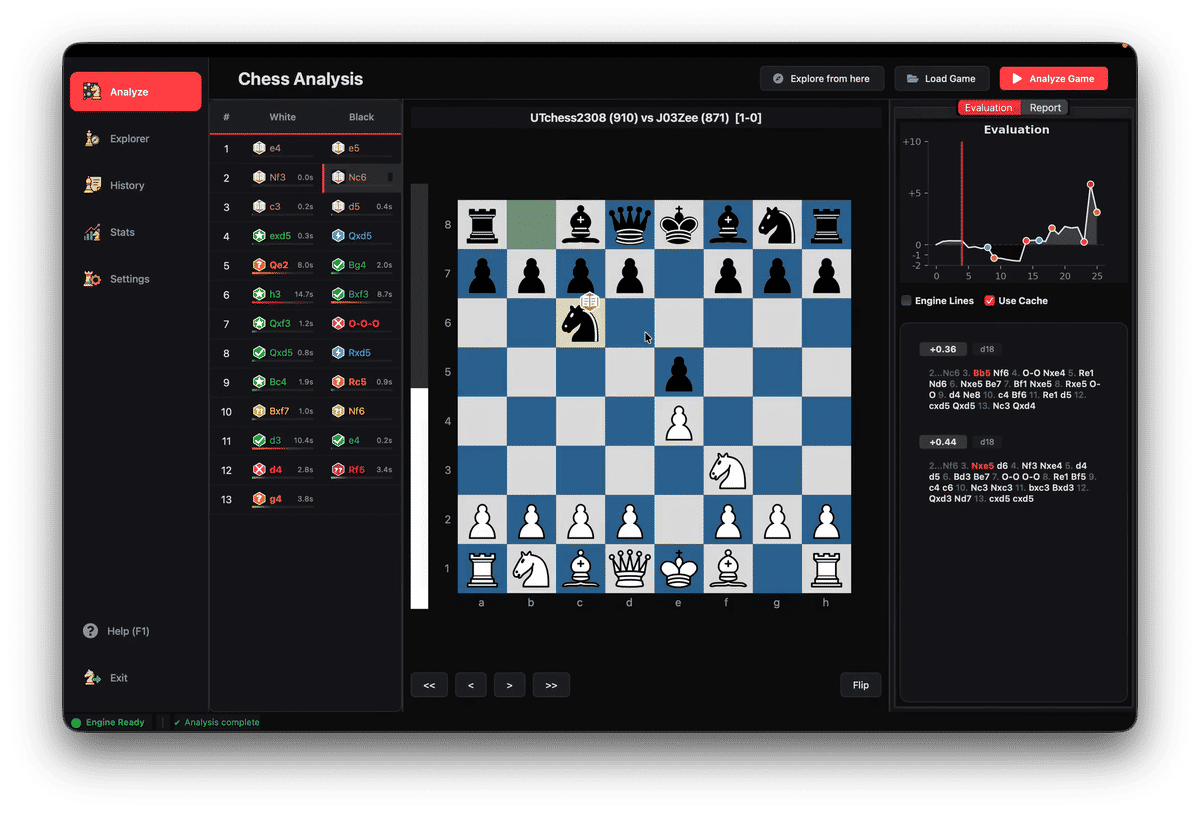
When analysis finishes, every move in the list now has:
- A classification icon: Brilliant, Great, Best, Excellent, Good, Inaccuracy, Mistake, Blunder, or Miss
- An evaluation score in centipawns (or mate notation)
- The best engine line for that position
The evaluation graph at the top shows the game's flow. Big swings mean something interesting happened.
Click any point on the graph to jump to that move.
The Report tab next to the graph shows:
- The opening name
- Overall accuracy percentage for each player
- Classification counts (how many blunders, mistakes, etc.)
Step 5: The Evaluation Graph
The graph plots engine evaluation (in centipawns, converted to win probability) for every move.
A flat line means both sides played well. Sharp spikes mean someone made a mistake, found a tactic, or missed something.
Click anywhere on the graph to jump to that position on the board.
Step 6: AI Summary (Optional)
There's a button labeled Generate AI Summary in the Report tab. Clicking it sends the game's PGN to an LLM provider and asks it to write a summary of the key moments.
This is optional. You need to configure an API key in Settings first (Groq has a free tier). If you haven't set one up, the app shows you a dialog listing the available providers.
The summary includes:
- A one-phrase game comment (e.g. "Sharp" or "Positional")
- A prose description of the turning points
- Time pressure notes if clock data is available
What You Get After Analysis
After the engine finishes, every move in your PGN file gets:
- A classification label (Brilliant, Best, Excellent, Inaccuracy, Mistake, Blunder, Miss)
- An accuracy percentage score
- The top Stockfish continuation for that position
- An evaluation graph showing the game's momentum swing by swing
All results are saved to a local SQLite database. You can export your game history to CSV for backup or import it on another machine. Your data stays on your computer, no account needed.
Keyboard Shortcuts Worth Knowing
| Key | Action |
|---|---|
| Ctrl+O | Open Load Game dialog |
| Left / Right | Navigate moves |
| Home / End | Jump to start / end of game |
| F | Flip the board |
| F1 | Show all shortcuts |
Links
- Download the app: chess-analyzer-ut.vercel.app/releases
- GitHub Repository: github.com/imutkarsht/Chess_analyzer
- Stockfish Engine: stockfishchess.org/download/